Using templates
A template defines the shape of the note that CleverConsult produces, meaning its sections, the order they come in and the level of detail in each one. You can keep as many templates as you need, and most practices end up using several.
You can have as many as you need
The number is unlimited, and each template can stay tightly focused on one kind of work. Set up a separate one for each kind of interaction you have, whether that is consults, follow-ups, procedure notes or anything else your practice handles regularly.
Most practices settle on a handful: a thorough consult template, a much shorter follow-up template, and one for each type of procedure.
The Smart Templates Gallery, which you reach through Templates → Templates Gallery, holds templates shared by other CleverConsult users, so you can start from one of theirs. Browsing it also gives you a good sense of how finely other practices split their own.
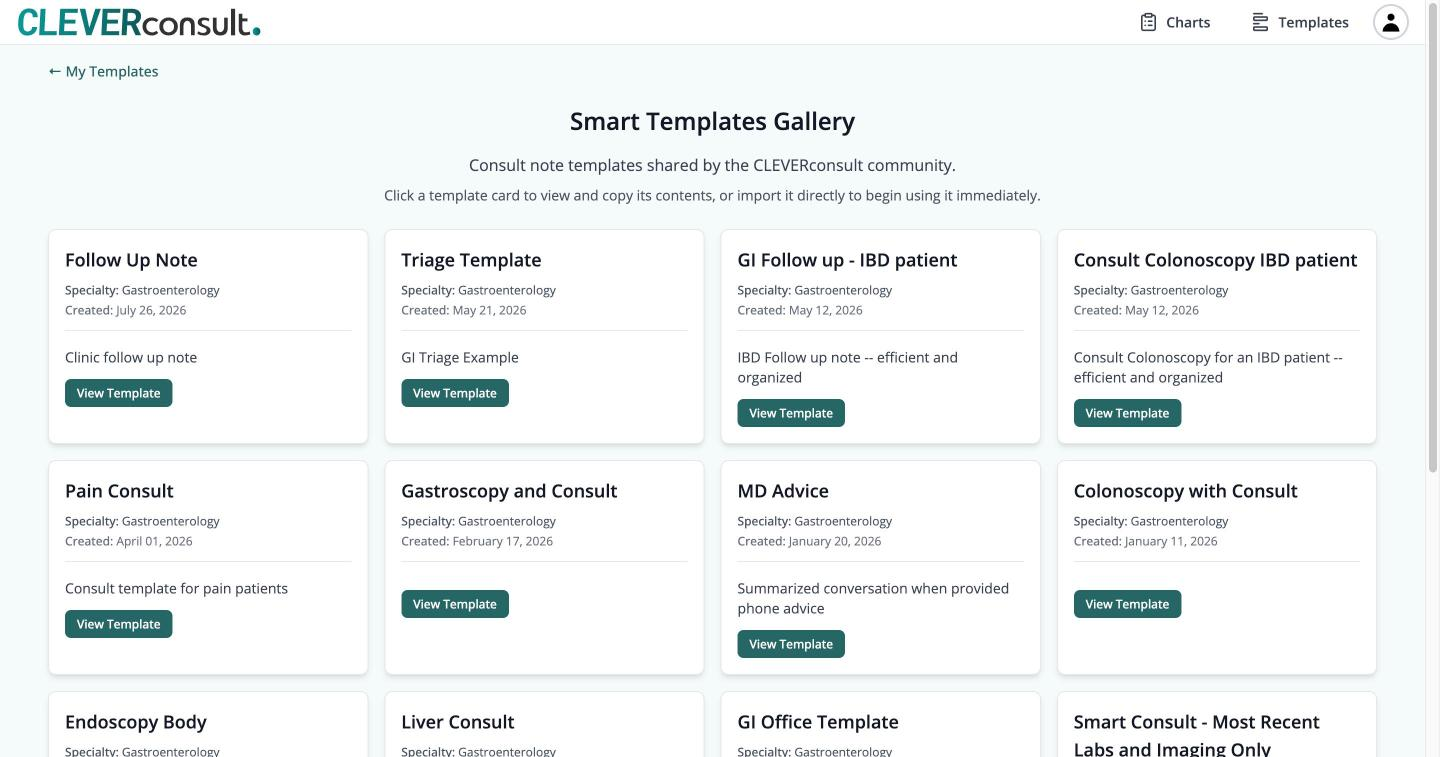
Open any card to read the template in full. From there you can either copy it to your clipboard so that you can adapt it, or import it directly and begin using it immediately.
How a template is written
A template is ordinary prose, written the way you would write it, with instructions to CleverConsult enclosed in square brackets.
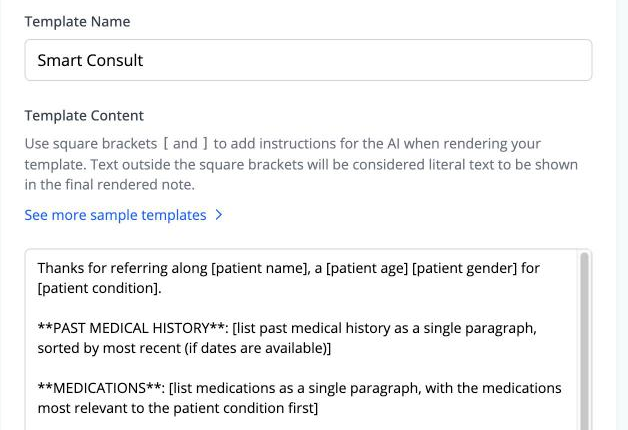
Anything you put inside square brackets is an instruction, and anything outside them appears in the finished note word for word. So a line written like this:
Thanks for referring along [patient name], a [patient age]
[patient gender] for [patient condition].
produces that sentence exactly as written, with the bracketed parts filled in from the patient's records.
This is why templates can be as loose or as prescriptive as you want them to be. An instruction such as [list labs as a single paragraph, grouped by date, showing most recent first, and limited to the last 18 months] is simply a sentence telling CleverConsult what you want, so you can be as specific as the situation calls for.
CleverConsult picks one for each visit
CleverConsult selects a template automatically. If an appointment is booked as a consult you get your consult template, and if it is booked as a follow-up you get your follow-up template. This is the normal path, and it leaves you free to start the visit straight away.
Changing the template yourself
Occasionally the automatic choice is wrong, usually because the appointment turned out to be something other than what it was booked as. It happens rarely, and when it does you can change the template yourself. The selector sits at the top of the generated note, next to the "Generated Note" heading.
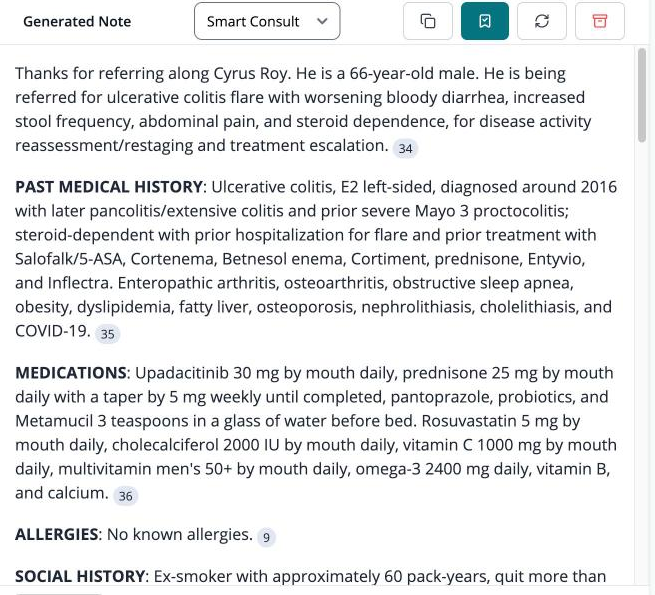
Choosing a different template from that dropdown re-renders the note against the one you picked.
We can build them for you
You can write or adapt a template yourself, using the gallery as a starting point. Alternatively, describe how you want your notes to read and CleverConsult will build it for you.
Setting up your templates is part of onboarding, so we will walk you through it when you first start.
The editor also includes a review box that flags likely errors in a template while you are writing it, so that a badly formed instruction gets caught before it has a chance to produce a poor note.
Producing a plain summary
CleverConsult organises every note around a template, so there is always one in play.
When a plain summary of what was said is all you want, make a template that does exactly that. Give it an obvious name such as Summary, and write a single instruction into it:
[summarize exactly what is said]
Selecting that template for a visit gives you an unstructured summary. It is only a template in name. This works because instructions are written in plain language, so a template can ask for as little as you like.
The gallery already contains a real example of the same idea in its MD Advice template, described as a summarised conversation for when you have given advice over the phone.